Make the page your own.
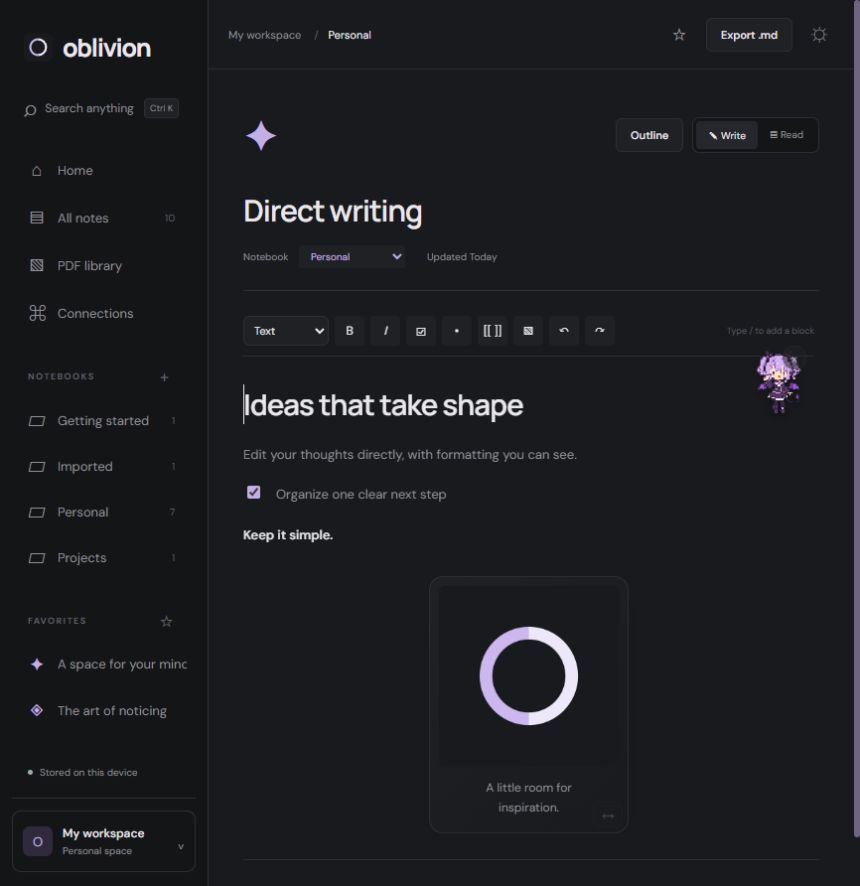
Write with headings, lists, images and checklists. Add a diagram or chart when words need a little company.
NOTES & EXPRESSION Oblivion
Open Oblivion
Oblivion
Open Oblivion
A LOCAL-FIRST NOTES & PDF WORKSPACE
Thoughts, reading, and the connections between them.
Find a quiet place for it all in Oblivion.
No account needed. Your workspace stays in this browser.
ONE WORKSPACE, MANY WAYS TO THINK
Less switching. More room to follow your curiosity.
Write with headings, lists, images and checklists. Add a diagram or chart when words need a little company.
NOTES & EXPRESSIONGather notes into notebooks and folders. Pin favorites, search your library, and archive what you want to keep for later.
A LITTLE ORDERLink notes to each other, explore backlinks and a connection graph, or bring a note back to a specific PDF page.
IDEAS THAT MEETREAD. MARK. MAKE IT YOURS.
Import a PDF, highlight a passage, and keep your notes beside it in split view. Link an idea to the page that sparked it, then export your annotated document.
Open your workspace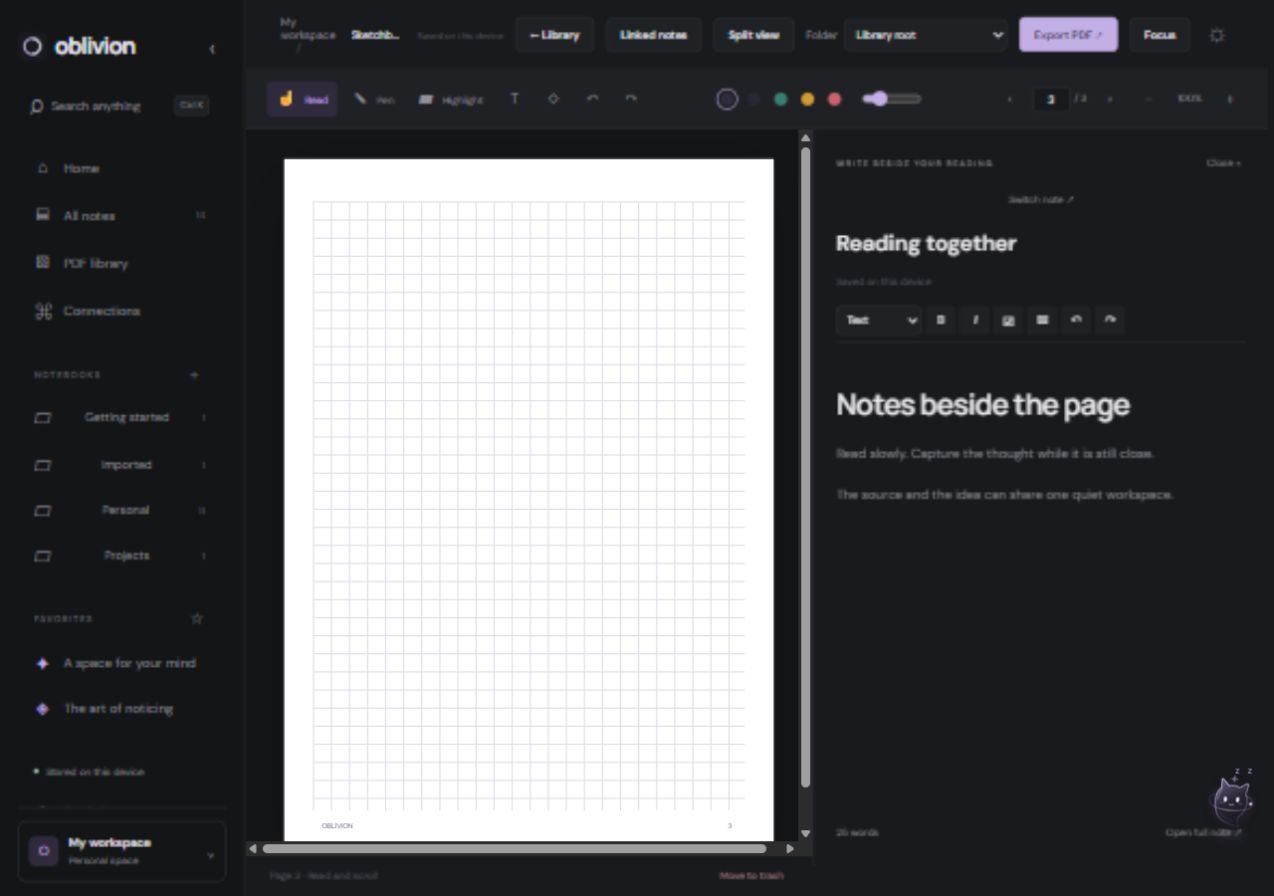
YOUR NOTES, CLOSE TO YOU
Notes, PDFs and annotations are saved locally in your browser. You can start without an account, and the app supports offline use after it has loaded.
Export notes as Markdown, annotated PDFs, or a full workspace backup. Save backups regularly, especially before clearing browser data.
This is an early web version. Each browser and device has its own workspace. Accounts, cross-device sync and native apps are planned.
A FEW THINGS TO KNOW
No. Open the app and start a note. Your workspace is saved in this browser on this device.
Not yet. Each browser has its own workspace. You can move work using full workspace backups; automatic sync is planned.
The app supports an offline shell after its first load over HTTPS. Keep using the same browser and save backups of important work.
Clearing site data can remove your local notes and PDFs. Export a full workspace backup from Settings beforehand, and keep it somewhere safe.
Email support@oblivion-notes.com for help. Keep a workspace backup before troubleshooting or clearing site data.
A blank page is a lovely place to begin.